

In most cases, it's normal. A sudden increase in audience size is often caused by system mechanics or your own setting changes, such as enabling Advantage+ custom audiences or the audience just crossing the privacy display threshold. These situations don't require action. What really needs fixing are the other two types: Pixel and Conversions API (CAPI) duplicate reporting without deduplication, and bot or fraudulent traffic inflating your audience.
To determine which category you're dealing with, first figure out where you're seeing this increased number.
Step 1: Distinguish Whether the "Audience Itself" Grew or the "Ad Set Estimated Size" Grew
Meta's backend has two easily confused numbers:
- Audience size in the audience asset list: Approximately how many people are in this custom audience itself.
- Estimated audience size at the ad set level: How many people this ad set might reach.
If only the number in the ad set skyrocketed and the audience list number barely changed, prioritize checking the Advantage+ settings in the next step. If both increased together, or only the audience list increased, skip to Step 3 and beyond.
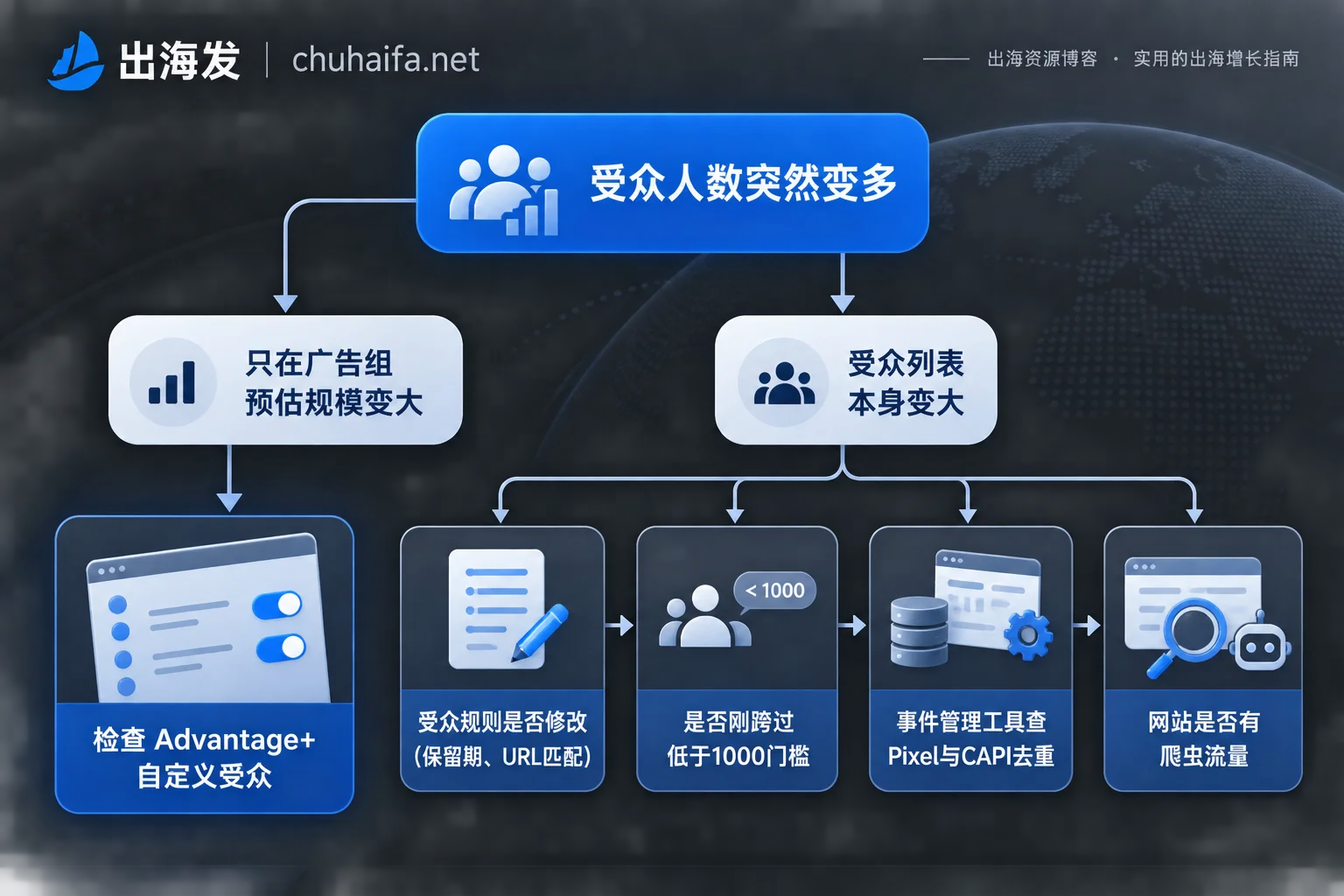
Step 2: If the Number in the Ad Set Skyrocketed, First Check if Advantage+ Custom Audiences Is Enabled
When Advantage+ custom audiences is enabled, Meta no longer treats your custom audience as a strict delivery boundary but as a seed signal to expand outward and find likely converters. The estimated reach shown in the ad set can therefore be much larger than the audience list itself.
This is by design, not a data error. Whether to keep it depends on your advertising goal:
- If you want the system to help you find new customers and scale, you can keep it, but don't treat this number as the actual audience size.
- For strict remarketing, such as only showing discounts to those who added to cart but didn't purchase, or only promoting new products to existing customers, expansion will spend budget on people outside the list. In this case, check this setting in the ad set audience settings, turn it off as needed, or set the custom audience as a restriction. Available options vary by ad objective and backend version; refer to the actual interface.
Step 3: Has the Audience Rule Been Changed?
If the number in the audience list itself increased, first check the audience's setting history; other team members might have modified it. Two types of changes are most common:
- Retention window extended: For example, from 30 days to 180 days; after the system re-pulls data, the audience multiplies.
- URL matching conditions loosened: For example, from "URL equals" a specific page to "URL contains" a keyword, or simply "All website visitors"; naturally, many more people match.
If the change was intentional, the growth is a normal result. If it was an accidental change, revert the rule and wait for the system to recalculate.
Step 4: Did It Just Jump from "Below 1,000"?
When an audience is small or privacy-restricted, the backend often shows "Below 1,000" or "Populating / Unavailable." Once the audience accumulates past the privacy threshold or the system completes a batch refresh, the number can suddenly jump to an actual estimated range.
This surge is just a display artifact; the actual number of people accumulated gradually. This is most common for newly created audiences or sites with low traffic. Also, Meta's displayed size is an estimate; minor fluctuations are not worth worrying about.
Step 5: Check Events Manager for Pixel and CAPI Duplication
If the previous steps don't match, it's time to look at the data source. Many independent stores use both browser-side Pixel and server-side CAPI to report the same events. This is recommended practice, but the two must be able to deduplicate:
- For the same event, the event_name must be consistent on both sides;
- Both sides must carry the same event_id so Meta can recognize it as the same action.
If deduplication fails, the system may incorrectly aggregate duplicate events, interfering with audience building and event matching. To troubleshoot, open Events Manager and check two things:
- Are there diagnostic alerts about duplicate events or deduplication?
- For a specific event (e.g., PageView, AddToCart), did the trigger count suddenly double after a site change, theme switch, plugin installation, or CAPI integration, while actual traffic in your analytics tool did not increase correspondingly?
Once you confirm a deduplication issue, have the person responsible for site building or technical integration add the event_id and check that event_name is exactly the same on both ends. When using a website platform's built-in CAPI integration, first check the platform's documentation for deduplication instructions before deciding whether to add manual tracking, to avoid double reporting from both the platform and custom code.
Step 6: Has the Website Been Hit by Bots or Spam Traffic?
Independent stores may be scanned by automated bots, maliciously crawled, or receive traffic from unknown sources. A large number of invalid devices trigger PageView, and these visitors are also counted in website event-based custom audiences.
Cross-reference with your website analytics tool to see if during the surge period there are these characteristics: abnormally concentrated traffic sources, regions clearly inconsistent with the target market, extremely short dwell time, abnormally high bounce rate.
If confirmed contamination, you can handle it as follows:
- Block obvious abnormal traffic sources at the website or CDN level;
- For remarketing audiences, don't rely solely on "All PageView"; switch to more intent-based conditions, such as visiting specific product pages, adding to cart, initiating checkout, or building from visitors with higher dwell time;
- It's difficult to separately exclude the audience from the contaminated period; if necessary, rebuild an audience with new rules while monitoring ad performance.
Engagement-Based Audiences: First Check if Content Recently Went Viral
If the growth is in an audience based on Facebook Page or Instagram engagement, first check if a recent post or Reels had a sudden organic traffic spike. This growth is real, but this group's intent may not match old fans. Before using it for ads, test with a small budget separately. For methods to review viral content, see Which Metrics to Look at in Social Media Weekly Reports.
How to Decide Whether to Take Action
- Can ignore: Advantage+ expansion enabled, retention period intentionally extended or rules loosened, audience just crossed the "Below 1,000" threshold, engagement content naturally went viral.
- Needs correction: Events Manager indicates duplicate events, or event volume doubled but real traffic didn't increase; obvious abnormal traffic in website analytics.
- Needs rollback: Rules accidentally changed.
One prerequisite when handling: if an audience is used in multiple ad sets, before changing rules or rebuilding, first confirm which running ads will be affected. Don't make changes all at once and then try to find the cause later.
Tools for Troubleshooting
This troubleshooting mainly relies on Meta's built-in Events Manager, Ads Manager, plus your website's own analytics backend. If you need to supplement a set of auxiliary tools for ad data monitoring or pixel debugging, you can browse the Ad Tools category. If the problem lies in the website platform's pixel and CAPI integration, or you're considering switching to a website building or e-commerce system with easier integration, check the Cross-border E-commerce category. Features and prices of each are subject to their official websites.