

When the order count and ROAS in Meta Ads Manager don't match the backend of your independent store such as Shopify, it usually doesn't mean the data is broken. The two sides are tracking two different things: Meta tracks "conversions it believes were driven by ads," while the store backend records "orders that actually happened."
What reconciliation really requires is breaking the gap into two parts:
- Definition gap: Differences in time windows and attribution methods. This is normal. Once you understand it and settle on a single definition, there's nothing to fix.
- Technical gap: Duplicate reporting, missed conversions, or wrong amounts or currencies being reported. This part skews ad decisions and needs fixing.
The troubleshooting order goes from easy to hard: confirm time zone and currency first, then align the time window and attribution definitions, then check Pixel and CAPI deduplication, then verify the reported amounts, and finally deal with missing conversions. Before you start, take a quick look at the direction of the gap—it can save you a lot of detours.
Check the Gap Direction First to Narrow Things Down
Take the same time period and compare Meta's purchase count and purchase value against the ad-sourced orders in your store backend:
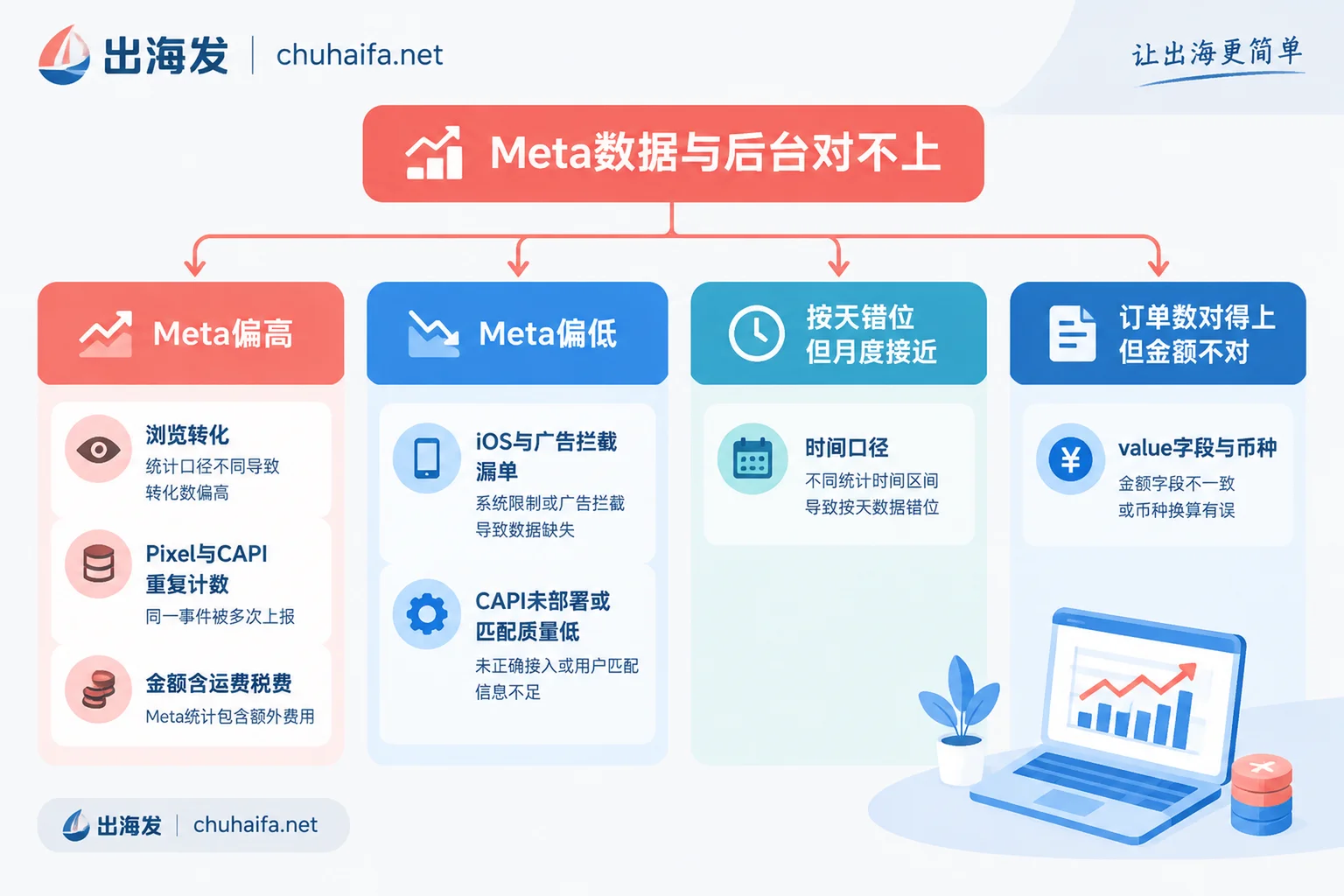
- Meta much higher than backend: Prioritize checking the share of view-through conversions, whether Pixel and CAPI are double-counting, and whether the reported amount includes shipping and tax or fails to deduct discounts. If the purchase count is close to double the backend, double-counting is the most likely cause.
- Meta lower than backend: Prioritize looking for missed conversions, including browser-side losses caused by iOS privacy restrictions, Safari limitations, and ad-blocking extensions, as well as whether server-side CAPI is deployed and what its match quality is.
- Mismatch by day but fairly close when extended to a week or a month: This is basically a time-window issue.
- Order count matches but amount doesn't: Check the value field and currency of the Purchase event.
These are only common correspondences, not absolutes. When several causes stack up, overestimation and underestimation can cancel each other out, so it's best to walk through all five steps below.
Step 1: Unify Time Zone and Currency
This is the fastest step and the easiest to overlook.
- Time zone: Confirm that the time zone of your Meta ad account matches that of your store backend. If the time zones differ, the daily order boundaries shift by a few hours, and daily reconciliation will never line up.
- Currency: When the ad account uses USD and the store settles in EUR or GBP, exchange rate conversion and settlement delays will both create discrepancies in ROAS between the two sides. Before reconciling, convert both amounts to the same currency at the same exchange rate baseline.
Step 2: Align Time Window and Attribution Definitions
This type of difference is normal and doesn't need fixing, but you must understand it—otherwise you'll misjudge the results of the previous steps.
Different time windows. Meta Ads Manager attributes conversions to the day the user interacted with the ad by default—the day they clicked or saw it. The store backend records by the day the order was actually created and paid. For example, if a user clicks an ad on Monday and orders on Friday, Meta counts that conversion into Monday's ROAS, while the store backend records it on Friday. So checking day by day will inevitably misalign. When reconciling, use a week or a longer period.
Different attribution methods. Meta's default attribution settings usually include 7-day click and 1-day view. "View-through conversion" means the user only saw the ad without clicking, then ordered later through organic search or another channel—Meta still credits that order to the ad. Store backends and GA4 generally use last-click attribution and won't credit such orders to Meta. This is a common reason Meta-side ROAS runs high.
The practical approach is to break down by attribution setting in Ads Manager and look separately at orders from 1-day click, 7-day click, and 1-day view. After excluding view-through conversions, click-only data usually comes closer to the store backend.
Once you've seen this, the team needs to settle on one definition for decision-making. For example, when reconciling and judging profitability, look only at click attribution while treating view-through as reference—rather than re-arguing every time you see different numbers.
Step 3: Check Whether Pixel and CAPI Are Double-Counting
Many independent stores now run both browser-side Pixel and server-side Conversions API (CAPI) to compensate for data lost on the browser side. That's fine in itself—provided deduplication is configured correctly.
Meta relies on event_name and event_id to determine whether two events are the same transaction. The Purchase events reported from both sides must have the same event name and event_id, and the event_id must be unique to each order. If either side lacks an event_id, or if the two sides generate different values, Meta will count the same order twice, inflating both the purchase count and ROAS.
The safer approach: generate the event_id only once per order, then pass that same value to both Pixel and CAPI. Don't let the front end and server side generate their own.
Troubleshooting method:
- In Events Manager, check the deduplication status of the Purchase event to confirm that events from the browser and server sources are indeed merged.
- Place one or two test orders and check whether the event_id reported from both sides is exactly the same.
- Check whether multiple plugins or code snippets report Purchase—for example, an official app plus a third-party tracking plugin, plus manually embedded code. Multiple sources reporting at once also causes duplication.
If you're still unsure whether to run both Pixel and CAPI, see Should You Use Facebook Pixel and CAPI Together.
Step 4: Verify the Amount Reported in the Purchase Event
If the order count matches but ROAS doesn't, the problem is most likely in the value field:
- It reports the total original price of the items without deducting discount code savings;
- The reported amount includes shipping or sales tax, while you're looking at the net product amount in the store backend;
- The reported currency doesn't match the store's actual settlement currency.
The most direct method is to pick a few orders and compare them one by one: the actual paid amount, product amount, shipping, and tax in the store backend against the value and currency reported to Meta for that order. First figure out exactly which number the tracking tool is reporting, then decide whether to change the reporting settings or to convert everything to that definition when reconciling.
Step 5: When Meta Is Low, Look for Missing Conversions
If Meta shows significantly fewer orders than actually occurred, the common cause is browser-side signal loss. iOS App Tracking Transparency (ATT), Safari's ITP restrictions, and user-installed ad blockers all cause conversion reporting that relies only on Pixel to fail.
Key checks:
- Whether CAPI is deployed. With Pixel only, missing conversions are basically unavoidable.
- Event Match Quality score. This can be viewed in Events Manager. A low score often means server-side events lack fbp and fbc parameters, or don't carry hashed user information such as email and phone number. Meta can't associate such orders with users who saw the ads, so they won't be counted as ad conversions.
How to Reconcile Day to Day After Fixing
Once technical issues are fixed, the two sides still won't match perfectly—expect that. To keep reconciliation stable over time, do three things:
- Standardize UTM conventions. All ad landing pages should carry UTM parameters under the same rules, so GA4 or the store backend can identify Meta-driven orders by source as a second reference.
- Fix the reconciliation definition and cadence. For example, aggregate backend orders weekly by payment time and compare against Meta click-attribution data to see whether the gap stays stable. A stable gap means tracking is normal; if the gap suddenly widens, go back through the steps above.
- Consider third-party attribution tools for multi-channel advertising. When running Meta, Google, and TikTok simultaneously, each platform credits orders to itself, and the total often exceeds actual orders. An independent attribution or aggregation view is needed to calibrate. For aggregating platform data into one table, see How to Aggregate Multi-Platform Social Media Data into One Table.
Where to Make Changes Depends on How Your Site Is Built
Where you fix deduplication and amount issues depends on how your tracking is connected:
- Shopify's official Facebook / Meta app: Troubleshoot mainly in the app settings and Events Manager, and also watch for any other plugins that might double-report.
- Self-hosted plugins like WooCommerce: Whether deduplication works and which amount is reported in value depends on the plugin's own implementation—check against the plugin documentation.
- Self-built CAPI via GTM server-side: You control the generation and passing of event_id and the value field's source, so check the configuration item by item per Steps 3 and 4.
If your troubleshooting shows that the existing tracking plugin can't deduplicate correctly, or you need server-side tracking or attribution analysis tools, browse the Ad Tools category; if the problem lies in the site builder or store plugin itself, look for alternatives in the Cross-Border E-Commerce category. For specific features and pricing, refer to each vendor's official website.